
How to Chart OTC Pairs in MetaTrader 5 (Pocket Option, Quotex & more)
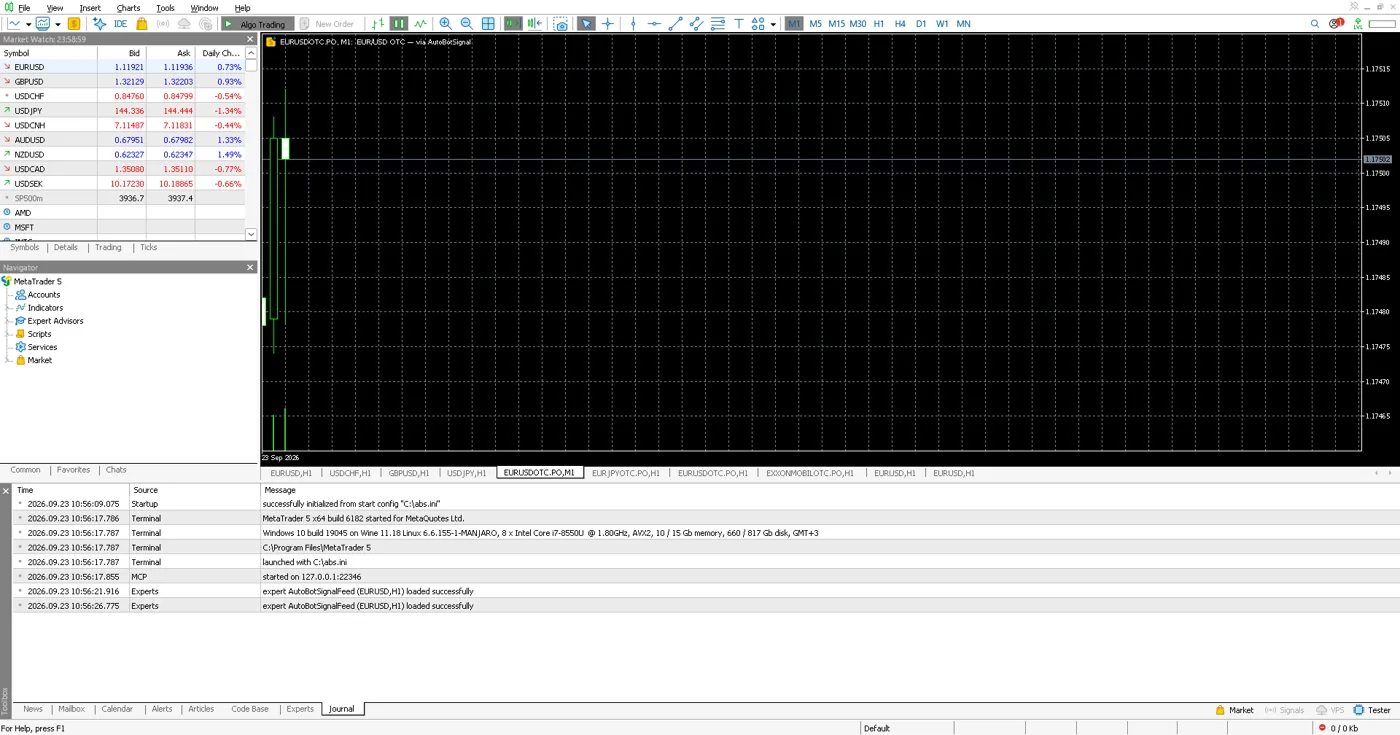
Ever tried to open an OTC pair — EURUSD_otc, AUDCAD_otc, a weekend synthetic — in MetaTrader 5 and found nothing there? You can’t. OTC pairs live only on your binary broker’s own feed; MetaTrader has never heard of them. So every serious indicator you own — your RSI setup, your custom Pine-ported EA, the strategy tester — sits idle on exactly the pairs you trade most.
The MetaTrader 5 OTC Feed plugin fixes that. The AutoBotSignal desktop app already records your broker’s OTC candles; this plugin streams them into MT5 as ordinary chart symbols. Real OTC candles, live ticks, tick history — with your full MT5 toolbox on top. This guide walks the whole setup, with screenshots, on Windows, macOS and Linux.
Note: The charts are analysis only — you cannot place a trade on them, and nothing here touches your money. You analyse in MetaTrader; your trades still run in the AutoBotSignal app on your broker, with your risk rules. Keep the app open: MT5 is fed by the bot, so the charts are live only while the app is running and connected.
What you need first
- The AutoBotSignal desktop app, running and signed in, with a broker connected (Pocket Option, Quotex, IQ Option, Olymp Trade, Expert Option or Deriv).
- MetaTrader 5 — it’s free, and it’s separate from your broker account here. On Windows and macOS install it from your MT5 broker or metatrader5.com; a demo terminal is fine, you need no MT5 account to chart. On Linux MT5 runs under Wine (advanced — see the note at the end).
That’s it. No API keys, nothing leaves your computer — MT5 reads from the app sitting right next to it on 127.0.0.1.
Step 1 — Enable the MT5 OTC Feed in the app
Open Plugins in the AutoBotSignal app, find MetaTrader 5 OTC Feed, and switch it on. That starts a small local feed on your machine (default port 8790) serving the candles the bot already records.
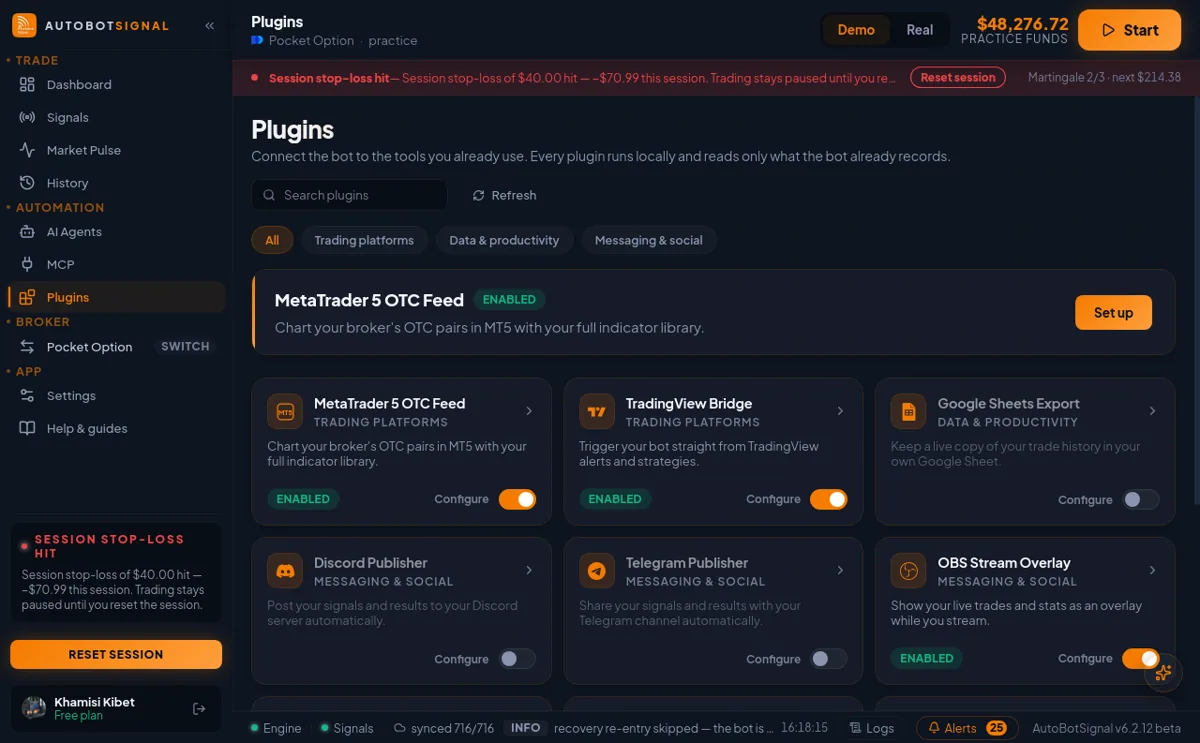
Click the card to open its panel, then Download MT5 connector — a single file, AutoBotSignalFeed.ex5.
Step 2 — Install the connector in MetaTrader
In MetaTrader 5: File → Open Data Folder, then open MQL5 → Experts and drop AutoBotSignalFeed.ex5 in. Restart MetaTrader so it picks the file up.
Step 3 — Allow the local connection
MetaTrader blocks outbound requests by default, so you tell it the feed is trusted — once. Open Tools → Options → Expert Advisors, tick Allow algorithmic trading and Allow WebRequest for listed URL, then type http://127.0.0.1:8790 into the list (use the port shown in the plugin panel if you changed it) and press Enter — it appears with a small globe icon:
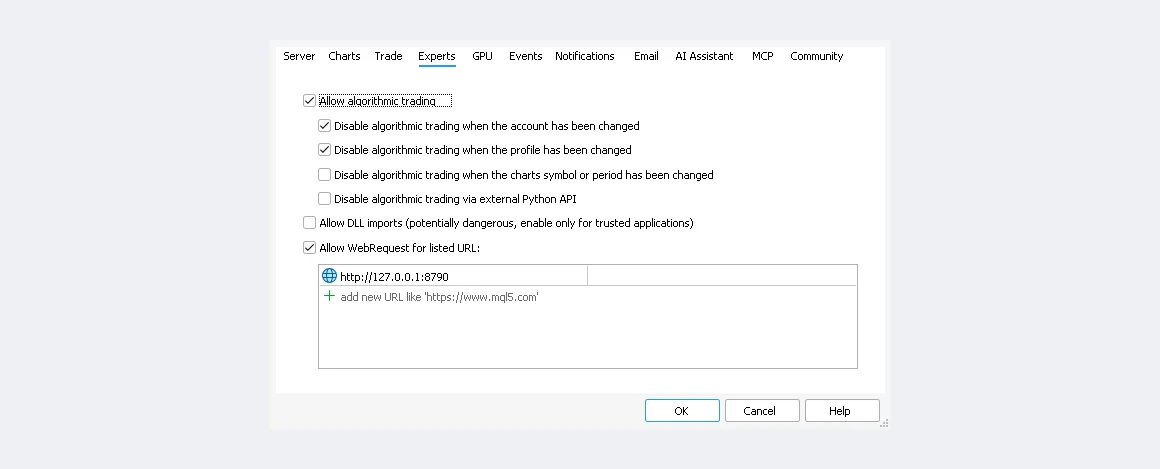
Click OK. This setting sticks, so you only do it once.
Step 4 — Attach the connector and chart
Drag AutoBotSignalFeed from the Navigator onto any chart. Within about a minute an AutoBotSignal group appears in Market Watch, filled with your broker’s pairs — named like EURUSDOTC.PO (the suffix is your broker: PO = Pocket Option, QX = Quotex, and so on).
Open a chart on any of them. You get real OTC candles with your full MT5 arsenal — every timeframe, every indicator, Expert Advisors and the strategy tester:
History is seeded as one-minute candles (MT5 builds every higher timeframe from those), plus tick history for the recent window and live ticks from there on.
If a chart freezes
The connector tells you why right on the chart, in the top-left corner. Almost always it’s one of three things: the AutoBotSignal app isn’t running, the plugin is switched off, or the broker is disconnected. Fix that and the chart back-fills the gap automatically — nothing is lost.
A note for Linux
There’s no official MetaTrader 5 for Linux; traders run it under Wine. If your MT5 runs under Wine on the same machine as the AutoBotSignal app, everything above works exactly the same — 127.0.0.1 reaches the app from inside Wine. It’s an advanced setup, though: if you just want OTC charts, the app’s own Market Pulse page charts every pair with no MetaTrader at all.
Get Started
The feed runs on the desktop app, so grab the latest build, enable the plugin, and chart your OTC pairs where your indicators already live.
Get the MT5 OTC Feed connector
Need a hand? Technical support is available at support@autobotsignal.io.